Here's what you'll need to watch Netflix in 4K on Chrome - Engadget
tags:To answer your first question: not a Mac.
RKY Photo/Shutterstock
Watching Netflix in 4K on a TV is usually as simple as having a compatible set and subscribing to the right plan. However, when it comes to web browsers, there are a number of requirements you need to meet in order to stream movies and shows at the highest available resolution.
The most obvious thing is that you need to subscribe to Netflix's Premium tier, since 4K isn't included in the Standard or ad-supported plans. Although previously you had to use Microsoft Edge or the native Windows app, Netflix now also supports Google Chrome — at least for PC users. Mac folks are required to use Safari. Also, even if you pay for the most expensive plan, it will only make a difference if you have the right display.
Hardware and software requirements for watching Netflix in 4K on Chrome
Most monitors have a resolution of 1080p or 1440p, which means they won't take full advantage of 4K streaming. Assuming the display meets the resolution requirements, getting Netflix's 4K content to play smoothly in Chrome also comes down to HDCP 2.2 support, which is a digital copy protection protocol that prevents unauthorized copying of 4K video. This requirement applies not only to the monitor you're using, but also to your computer's video output. If you're connecting your PC to an external 4K monitor or a TV, both the display itself and the specific port on your graphics card must support HDCP 2.2.
Also, your operating system must support the HEVC codec. While systems like macOS already come with native HEVC support, Windows users may need to purchase and install the HEVC Video Extensions package from the Microsoft Store to ensure they can watch 4K videos from Netflix on their PC using Chrome. Netflix has been gradually switching from HEVC to the more efficient AV1 codec, but support for HEVC remains a key requirement for 4K streaming on the platform.
With HEVC and HDCP 2.2 supported, the next step is to check your computer's hardware. According to Netflix, 4K content requires an Nvidia GeForce 1050 GPU or newer, or an AMD Radeon RX 400 GPU or newer. As for the CPU, your computer needs a 7th-generation Intel Core CPU or newer, or an AMD Ryzen CPU. Make sure your computer is also running the latest software and drivers. For PC users, Windows 11 is required.
Streaming on Chromebooks and final checks
Filipe Espósito/Netflix/Engadget
If you're using a Chromebook Plus or a Chromebox, the requirements are slightly different, yet still just as strict. You still need a Premium plan and a 4K monitor compatible with HDCP 2.2, and your device must be running Chrome OS76 or later with Google Chrome installed.
If you have met all the hardware requirements and still suspect Netflix is downgrading your picture quality, you can check your actual streaming resolution by pressing Ctrl+Alt+Shift+D on your keyboard while a video is playing. This brings up a diagnostic overlay that displays your current bitrate and resolution, allowing you to see if you are actually getting the 4K stream you are paying for. If the resolution is lower than 3840 × 2160, the video is not 4K.
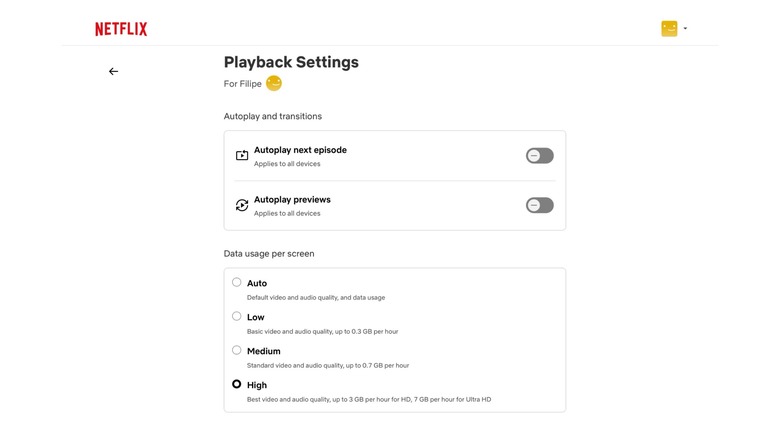
In that case, it's also worth checking your Netflix playback settings to see if the Ultra HD option is enabled. To do this, click your profile picture on the Netflix page and select Account. Click Manage Profiles and select your profile. Go to Playback Settings and change Data Usage to High/Best Video. Keep in mind that having a fast internet connection is also essential for 4K streaming. Now you should finally be able to watch your favorite Netflix movies and shows in 4K resolution.